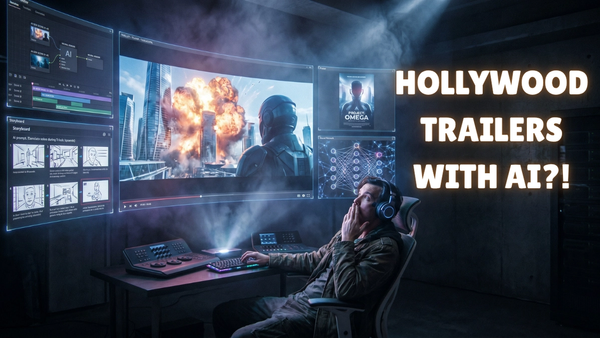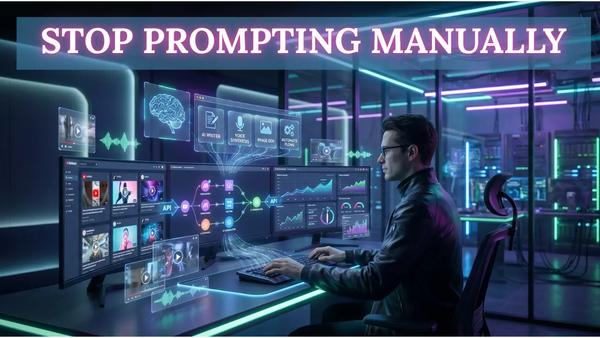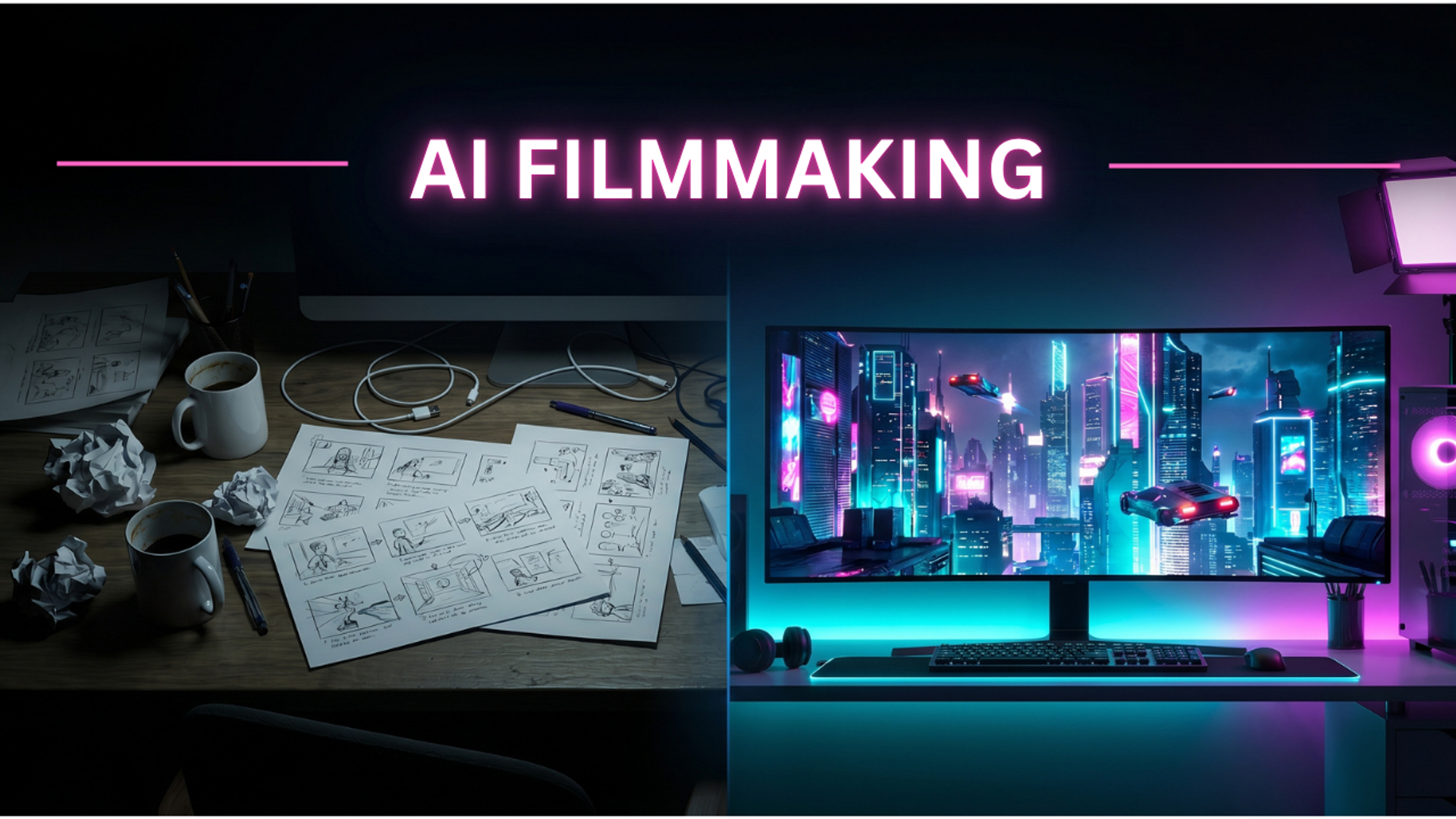
Just a couple of years ago, AI video was limited to weird, morphing 3-second clips where hands had seven fingers and backgrounds melted into each other. Today, the landscape is entirely different. In 2026, we are seeing independent creators produce stunning, cinematic short films, high-end commercial mockups, and Hollywood-level trailers entirely from their laptops.
While generating a flawless, continuous 90-minute feature film with perfect continuity is still incredibly tedious, producing a polished, 3-to-5-minute cinematic short is completely accessible. You just need to stop treating AI like a slot machine and start treating it like a film production set.
Here is the exact, step-by-step workflow the pros are using to turn prompts into breathtaking cinematic sequences in 2026.
1. Build Your 2026 AI Tech Stack
The biggest mistake beginners make is trying to generate an entire film using just one platform. In 2026, no single AI model is the best at everything. Professional workflows require a "stack" of specialized tools. Here is what you need:
- For Cinematic Realism & Native Audio: Google Veo 3.1 or Sora 2 Pro. These models are the current gold standard for raw visual quality. Veo 3.1, in particular, is incredible because it natively generates synchronized background audio, dialogue, and sound effects right alongside the 4K video. Sora 2 Pro remains unmatched for simulating real-world physics and complex camera tracking.
- For Human Movement & Emotion: Kling 3.0 Pro. If your film requires realistic human walking, dancing, or subtle facial expressions, Kling is currently outperforming the competition. It excels at keeping human anatomy stable over longer multi-shot sequences.
- For Ultimate Post-Production Control: Runway. When you need to precisely control a camera pan, use a "Motion Brush" to animate just the water in the background of a static image, or blend two shots together, Runway is still the industry standard for granular, VFX-style control.
- For Audio & Dialogue: ElevenLabs & Suno. For custom voiceovers that convey real emotion, ElevenLabs is a must. For cinematic background scores, Suno or Udio will generate the exact musical mood you need.
2. Step One: The Audio-First Approach (Pre-Production)
Do not start by generating random video clips. You will burn through your monthly API credits in hours. Start with the sound.
Write the Script: Keep it tight. Every line of dialogue means another shot you have to perfectly generate.
Generate the Voiceover: Drop your script into ElevenLabs and tweak the delivery until the pacing and emotion sound natural.
Build the Timeline: Open your traditional video editor (like Premiere Pro, DaVinci Resolve, or CapCut). Drop your voiceover and background music onto the timeline.
Once your audio track is locked in, you can clearly visualize the movie. You will know exactly that Scene 1 needs to be exactly 4.5 seconds long to match the music drop. You are now generating video with a strict purpose, rather than just hoping for a cool output.
3. Step Two: Visual Storyboarding (The Image-to-Video Secret)
If you type a text prompt directly into an AI video generator, you are rolling the dice. The secret to a cohesive short film is using Image-to-Video.
Before animating anything, jump into an image generator like Midjourney v7 or Nano Banana 2 (Gemini's image model). Generate your "key frames"—the establishing shots, the close-ups of your characters, and the dramatic angles.
- Character Consistency: Create a "Character Reference Sheet" with your protagonist from multiple angles.
- The "Ingredients" Method: Tools like Veo 3.1 now have "Ingredients to Video" features. You can upload 3 or 4 reference images of your character and your setting, and the AI will lock those identities in place, ensuring the actor in Scene 1 looks identical to the actor in Scene 5.
By establishing the visual style, color grading, and lighting in still images first, you ensure your final output looks like a unified movie, not a random compilation of clips.
4. Step Three: Animating the Shots (Production)
Now take those perfect still images and upload them into your video models (Veo, Sora, or Kling).
- Keep Prompts Simple: Since the image already dictates the look, your text prompt only needs to dictate the motion. Do not write a novel. Simply type: "Slow cinematic dolly push forward, subtle wind blowing through the actor's hair."
- Start/End Frame Animation: This is a massive 2026 feature. You can upload your Midjourney image as the "Start Frame," generate another image showing the character across the room, upload it as the "End Frame," and the AI will perfectly animate the movement bridging the two images together.
- Seamless Extensions: If a clip looks amazing but is only 5 seconds long, use the "Extend" feature to push the shot to 10 or 15 seconds without losing the aesthetic.
5. Step Four: Assembly and Upscaling (Post-Production)
Finally, drop your newly generated video clips into your editing timeline right over your pre-built audio track.
Because you already paced out the audio, the clips should slide right into place. Add your hard cuts, crossfades, and a final color grade to tie everything together.
If your AI generator only output at 1080p, or if the faces got slightly soft during a fast movement, you can run the final export through an AI upscaler like Topaz Video AI to give it that crisp, 4K Hollywood finish.
Creating AI films is no longer about who can write the craziest text prompt. It is about who has the patience to combine traditional filmmaking techniques with next-generation tools. Treat the AI like your camera and lighting crew, but remember that you are still the director.Just a couple of years ago, AI video was limited to weird, morphing 3-second clips where hands had seven fingers and backgrounds melted into each other. Today, the landscape is entirely different. In 2026, we are seeing independent creators produce stunning, cinematic short films, high-end commercial mockups, and Hollywood-level trailers entirely from their laptops.
While generating a flawless, continuous 90-minute feature film with perfect continuity is still incredibly tedious, producing a polished, 3-to-5-minute cinematic short is completely accessible. You just need to stop treating AI like a slot machine and start treating it like a film production set.
Here is the exact, step-by-step workflow the pros are using to turn prompts into breathtaking cinematic sequences in 2026.
1. Build Your 2026 AI Tech Stack
The biggest mistake beginners make is trying to generate an entire film using just one platform. In 2026, no single AI model is the best at everything. Professional workflows require a "stack" of specialized tools. Here is what you need:
- For Cinematic Realism & Native Audio: Google Veo 3.1 or Sora 2 Pro. These models are the current gold standard for raw visual quality. Veo 3.1, in particular, is incredible because it natively generates synchronized background audio, dialogue, and sound effects right alongside the 4K video. Sora 2 Pro remains unmatched for simulating real-world physics and complex camera tracking.
- For Human Movement & Emotion: Kling 3.0 Pro. If your film requires realistic human walking, dancing, or subtle facial expressions, Kling is currently outperforming the competition. It excels at keeping human anatomy stable over longer multi-shot sequences.
- For Ultimate Post-Production Control: Runway. When you need to precisely control a camera pan, use a "Motion Brush" to animate just the water in the background of a static image, or blend two shots together, Runway is still the industry standard for granular, VFX-style control.
- For Audio & Dialogue: ElevenLabs & Suno. For custom voiceovers that convey real emotion, ElevenLabs is a must. For cinematic background scores, Suno or Udio will generate the exact musical mood you need.
2. Step One: The Audio-First Approach (Pre-Production)
Do not start by generating random video clips. You will burn through your monthly API credits in hours. Start with the sound.
Write the Script: Keep it tight. Every line of dialogue means another shot you have to perfectly generate.
Generate the Voiceover: Drop your script into ElevenLabs and tweak the delivery until the pacing and emotion sound natural.
Build the Timeline: Open your traditional video editor (like Premiere Pro, DaVinci Resolve, or CapCut). Drop your voiceover and background music onto the timeline.
Once your audio track is locked in, you can clearly visualize the movie. You will know exactly that Scene 1 needs to be exactly 4.5 seconds long to match the music drop. You are now generating video with a strict purpose, rather than just hoping for a cool output.
3. Step Two: Visual Storyboarding (The Image-to-Video Secret)
If you type a text prompt directly into an AI video generator, you are rolling the dice. The secret to a cohesive short film is using Image-to-Video.
Before animating anything, jump into an image generator like Midjourney v7 or Nano Banana 2 (Gemini's image model). Generate your "key frames"—the establishing shots, the close-ups of your characters, and the dramatic angles.
- Character Consistency: Create a "Character Reference Sheet" with your protagonist from multiple angles.
- The "Ingredients" Method: Tools like Veo 3.1 now have "Ingredients to Video" features. You can upload 3 or 4 reference images of your character and your setting, and the AI will lock those identities in place, ensuring the actor in Scene 1 looks identical to the actor in Scene 5.
By establishing the visual style, color grading, and lighting in still images first, you ensure your final output looks like a unified movie, not a random compilation of clips.
4. Step Three: Animating the Shots (Production)
Now take those perfect still images and upload them into your video models (Veo, Sora, or Kling).
- Keep Prompts Simple: Since the image already dictates the look, your text prompt only needs to dictate the motion. Do not write a novel. Simply type: "Slow cinematic dolly push forward, subtle wind blowing through the actor's hair."
- Start/End Frame Animation: This is a massive 2026 feature. You can upload your Midjourney image as the "Start Frame," generate another image showing the character across the room, upload it as the "End Frame," and the AI will perfectly animate the movement bridging the two images together.
- Seamless Extensions: If a clip looks amazing but is only 5 seconds long, use the "Extend" feature to push the shot to 10 or 15 seconds without losing the aesthetic.
5. Step Four: Assembly and Upscaling (Post-Production)
Finally, drop your newly generated video clips into your editing timeline right over your pre-built audio track.
Because you already paced out the audio, the clips should slide right into place. Add your hard cuts, crossfades, and a final color grade to tie everything together.
If your AI generator only output at 1080p, or if the faces got slightly soft during a fast movement, you can run the final export through an AI upscaler like Topaz Video AI to give it that crisp, 4K Hollywood finish.
Creating AI films is no longer about who can write the craziest text prompt. It is about who has the patience to combine traditional filmmaking techniques with next-generation tools. Treat the AI like your camera and lighting crew, but remember that you are still the director.